Travel eSIM Not Working Abroad? What to Check First
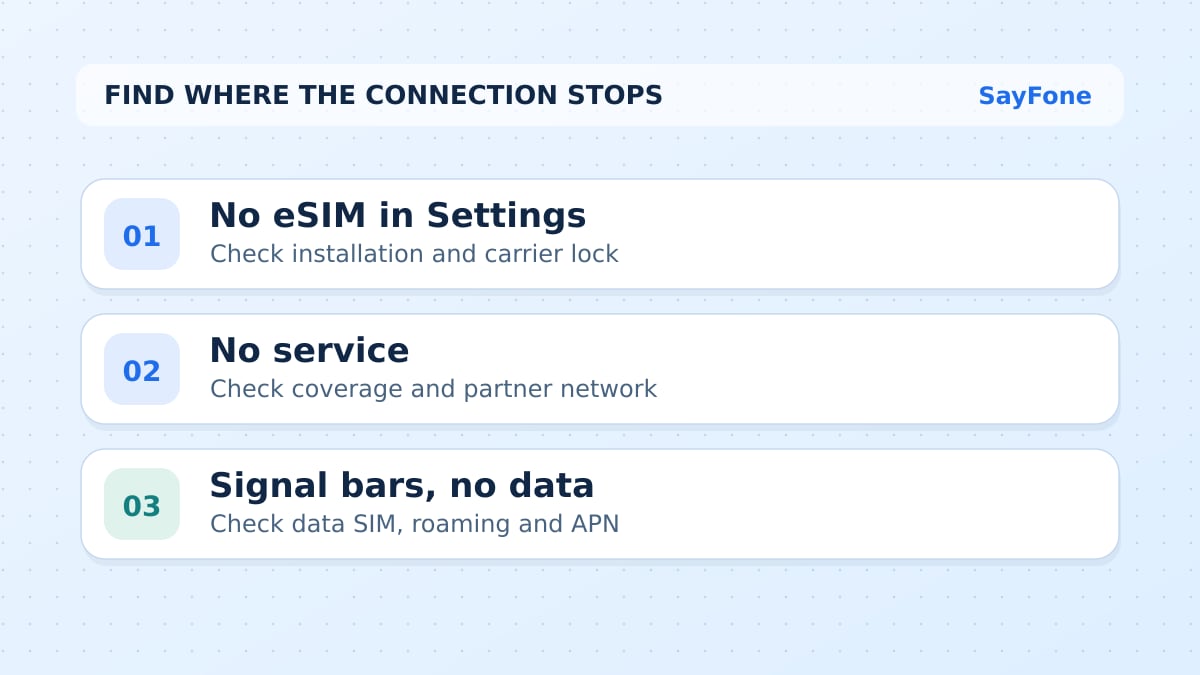
If your travel eSIM is installed but you have no internet, check three things first. Turn on the travel line, select it for mobile data, and enable roaming on that line if your plan asks for it. Test with Wi-Fi off. If you still cannot load a page, what your phone displays tells you where to look next.
Leave the eSIM profile on the phone while you diagnose the problem. Removing it can use up your only install attempt. Apple specifically advises against erasing an eSIM for troubleshooting unless your carrier directs you to.
Match the symptom to the fix
| What you see | Check first |
|---|---|
| No travel line in SIM settings | Installation status, Wi-Fi, device compatibility and carrier lock |
| Activating before departure | Whether the profile is installed and the plan needs a supported network at your destination |
| No Service or SOS on the travel line | Covered country, line enabled, local partner network and coverage where you stand |
| Bars or 4G/5G but pages fail | Mobile data line, plan expiry or balance, roaming and provider APN |
| Web pages work, one app fails | That app's mobile data permission, service status, or work network rules |
| Phone works, laptop hotspot fails | Plan's tethering rules, remaining allowance and hotspot settings |
On a dual SIM phone, signal bars may belong to your home SIM. Open the SIM settings and look at the travel line directly. A successful load over airport Wi-Fi also tells you little about the eSIM. Turn off Wi-Fi for a short test, then turn it back on if you need to read support instructions.
The eSIM is missing or says Activating
Connect to stable Wi-Fi. Check Settings → Cellular on iPhone or Settings → Network & internet → SIMs on Pixel. On Galaxy, look in Connections → SIM manager. If the travel profile appears, the phone has added the line. Turn it on at a covered destination and see whether it registers. A first-connection plan may sit idle when you install it in another country.
If there is no profile or setup reports that the code has been used, open the order details and check which device received it. Ask the provider about reissuing the profile before scanning the same code again. On iPhone, Settings → General → About → Carrier Lock should show No SIM restrictions for an unlocked device. Apple's eSIM setup troubleshooting also explains how to check for carrier settings updates. If you are still at home, read when to install a travel eSIM before starting a plan whose validity begins at installation.
The travel line has no service
Check the country and the plan's validity in the order details. Airport layovers, border towns, and ships can leave you outside the network your package uses. Try from a spot with open reception, then turn airplane mode on for a few seconds and turn it back off. On iPhone, Apple also suggests switching the affected line off and on and restarting the phone when a setup issue persists.
Start with automatic network selection. If the provider lists specific local partners and auto selection fails, select one of those partners manually. You may see other network names the plan cannot use. Switch back to automatic selection when you move to another covered country, unless the provider gives a different instruction.
The travel line has bars but there is no data
Select the eSIM under Cellular Data on iPhone or Mobile data under your Android SIM settings. Test a fresh page with Wi-Fi off. If a web page loads but a particular app does not, check whether cellular data is allowed for that app. For a company phone, ask your IT team if a managed VPN or network filter is involved.
Open your provider account on Wi-Fi and check both the expiry time and remaining data. A phone may keep its network connection after a package has run out. On an unlimited plan, slow data can mean you have crossed a daily high-speed allowance. The plan details tell you the reduced speed and when the faster allowance renews.
If the package is active, compare its APN instructions with the phone's settings. An APN tells the network how to route data for that SIM. Copy the exact value from the provider, only for the travel line, and leave the other fields as instructed. Some iPhones hide the APN menu because the carrier manages it. Use the provider's instructions if the menu is missing. Google explains mobile network settings and SIM defaults on Pixel.
Should data roaming be on for the travel eSIM?
Turn it on for the travel eSIM if its instructions say to. Travel plans often use local partner networks, so your phone may show roaming even when the data comes from the prepaid allowance. Select the travel eSIM as the default data line. Keep data roaming off on your home SIM if you want to avoid its data charges.
On iPhone, go to Settings → Cellular → SIMs and open each line separately to check its Data Roaming switch. In Cellular Data, select the travel line and turn off Allow Cellular Data Switching. See Apple's dual SIM roaming settings. On Pixel, select the travel SIM under Settings → Network & internet → SIMs. On Galaxy, start with Settings → Connections → SIM manager for the data line and look for Data roaming under Mobile networks. Labels and per-line controls vary by model and carrier.
If your phone has one shared roaming control, you can turn the home line off while using the travel plan. If you need the home number for a login code, check how to keep receiving SMS abroad. Calls and texts on that line follow its carrier's terms even with data roaming off.
Send support the details that narrow it down
If you still have trouble, include the phone model, operating system version, current country, plan name, and exact status shown for the travel line. Say whether pages load with Wi-Fi off, which network appears, and which checks you tried. A screenshot of the SIM selection or error can help. Share activation codes and device identifiers only through the provider's private support channel if requested.
For a SayFone plan, open My eSIMs over Wi-Fi to check the allowance and installation instructions. If the plan appears active and your setup matches, use SayFone support with the order details. If the issue only affects your laptop, check how hotspot sharing works with a travel eSIM.