Can You Use a Travel eSIM as a Hotspot?
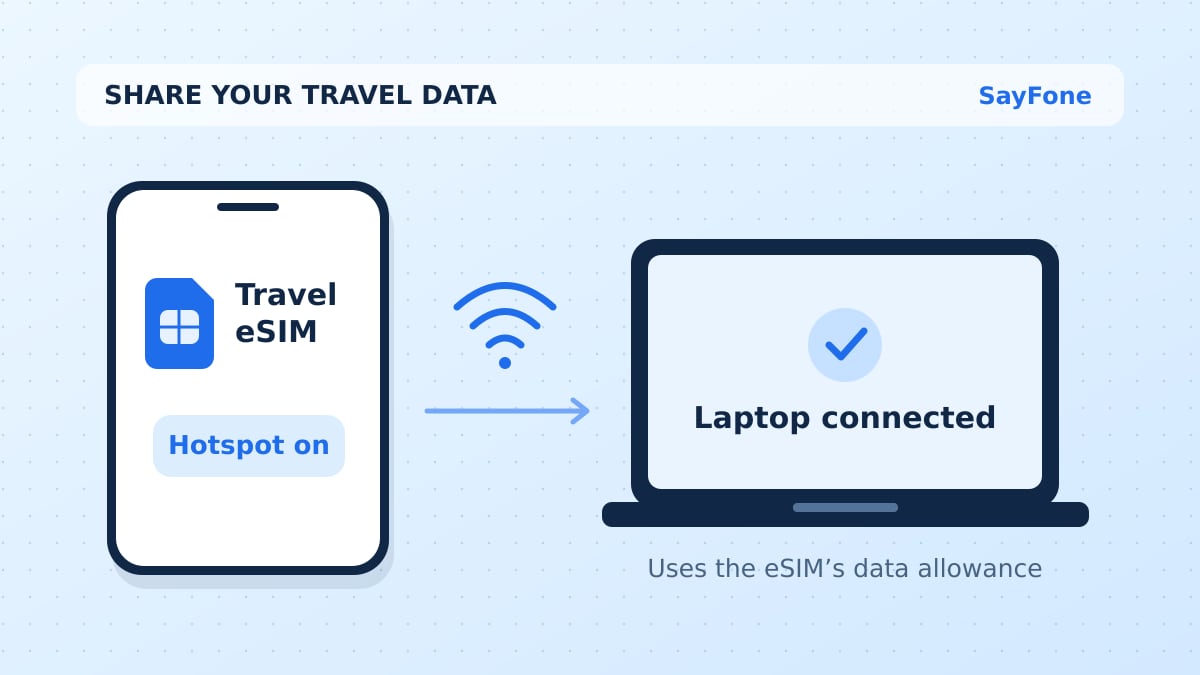
You can use a travel eSIM as a hotspot if your phone and the plan support tethering. Select the travel eSIM as your mobile data line, then turn on Personal Hotspot on iPhone or Wi-Fi hotspot on Android. The laptop, tablet or second phone will use the travel eSIM's data through your phone.
The package's hotspot terms matter more than the word “unlimited.” Some plans let you share from the same allowance you use on the phone. Others set a separate sharing limit or restrict tethering. Look up the exact destination and package before buying it for work.
Check these details before using a hotspot abroad
| Check | Why it matters |
|---|---|
| Tethering support | The plan must allow your phone to share its connection |
| Shared or separate allowance | Some plans draw hotspot use from the main data bucket. Others cap hotspot use separately |
| Speed after the high-speed limit | A connection can still work for messages after it becomes too slow for video calls |
| Validity and coverage | The plan must be active in your location when you need to share it |
If a plan gives you 5 GB and shares that bucket across devices, a laptop using 800 MB leaves about 4.2 GB before your phone's own use. If the plan instead caps tethering at 500 MB a day, that limit applies even when your phone has data left. Ask support about the package name and destination if the listing leaves out this detail.
Share your travel data from an iPhone
Open Settings → Cellular → Cellular Data and choose the travel eSIM. Turn off Allow Cellular Data Switching if you want to keep the hotspot on that line. Follow the plan's instructions for roaming on the travel eSIM. Try loading a web page on the phone with Wi-Fi off before connecting the laptop.
Then open Settings → Personal Hotspot and turn on Allow Others to Join. Depending on the phone, you may find the option under Cellular. On the laptop, select the iPhone's Wi-Fi network and enter the password displayed on the phone. On a dual SIM iPhone, the hotspot uses the line selected for mobile data. See Apple's guide to sharing an iPhone connection.
If an older laptop cannot see the hotspot, check whether your iPhone offers Maximize Compatibility. Apple lists it as a troubleshooting step for supported models. Check the password again and keep the devices close. See Apple's Personal Hotspot troubleshooting steps.
Share your travel data from Android
On Pixel, choose the travel eSIM for data under Settings → Network & internet → SIMs. Then go to Network & internet → Hotspot & tethering → Wi-Fi hotspot. Check the network name and password, turn it on, and join from the other device. Google's Pixel hotspot instructions also describe USB and Bluetooth tethering.
On many Samsung Galaxy phones, choose the data SIM in Settings → Connections → SIM manager, then look for Mobile Hotspot and Tethering under Connections. Menu labels vary by phone and carrier. Some Android phones can share an existing Wi-Fi connection too. For a test of the travel eSIM itself, disconnect the phone from hotel Wi-Fi and make sure mobile data works first.
When the phone has internet but the laptop does not
If Personal Hotspot is missing or disabled, check the provider's tethering support and confirm mobile data is on. If the laptop joins the hotspot but cannot load a page, test the same page on the phone. If both fail, work through the travel eSIM connection checks. If only the laptop fails, check the hotspot's allowance, reconnect to the Wi-Fi network, and ask whether the plan requires a particular APN setting for sharing.
For a hotspot that drops when the laptop sleeps, check the phone's setting to turn off the hotspot when no devices are connected. For slow speeds, try a spot with better cellular reception and check whether the plan has reached its high-speed limit. A web page can load on a throttled connection that cannot keep a video meeting steady.
Keep the laptop from spending the whole allowance
Set the hotspot as a metered network on the laptop where possible. Pause large updates and cloud backups until you reach regular Wi-Fi. Use audio-only for long calls if video is optional. Check usage after your first work session, since both devices can draw from the same bucket. The one-week travel data budget shows how to leave room for a busy day.
Choose a plan with enough data and validity for the days you will share it. Compare the destination and package terms on SayFone's eSIM store. If you need to take calls from a laptop and an eSIM supplies the data, check how to call normal phone numbers over the connection.