How to Dial an Extension on iPhone Using Pause or Wait
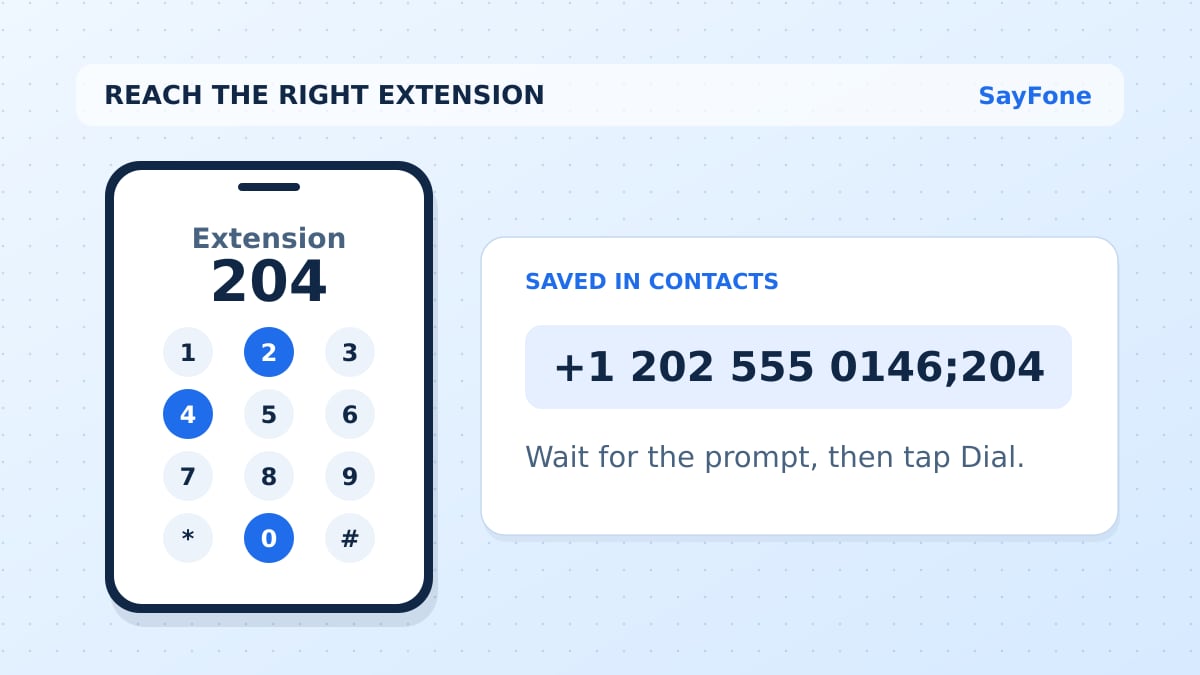
To dial an extension on iPhone, call the main number in the Phone app, wait for the extension prompt, tap Keypad, and enter the extension. If the recording asks for # after the digits, press it when prompted. For a number you call often, save the extension with Wait so you can send it at the right moment.
Say a hotel gives you its main number and “ext. 204.” Dial the main number first. When you hear “If you know your party's extension,” tap Keypad, enter 204, and listen for the transfer. The keypad on the active call sends digits to the hotel's phone system. The keypad you used to start the call dials the main number.
Choose the keypad, Pause, or Wait
| Method | When to use it | What the iPhone does |
|---|---|---|
| Keypad during the call | A first call or a menu with several prompts | Sends each digit when you tap it |
Pause , | A familiar system that is ready at about the same time each call | Waits about two seconds per comma and sends the following digits |
Wait ; | A long greeting or variable pickup time | Holds the extension until you tap the Dial control |
For a one-off call, use the in-call keypad so you can hear when the system is ready. If a hotel plays different greetings by time of day, save the extension with Wait. A fixed pause that works during office hours can send digits too early when the after-hours recording answers.
Save an extension in Contacts
Open Contacts, select the person or business, and tap Edit. Tap the phone number and put the cursor at the end of the main number. Tap the symbols key on the number pad, then choose Pause or Wait. Enter the extension immediately after the symbol and tap Done. Apple documents both controls in its iPhone Contacts guide.
Using the example number +1 202 555 0146 and extension 204, save +1 202 555 0146;204 to send the digits when you tap Dial. Save +1 202 555 0146,204 if you want the phone to send 204 after the short pause. You can also save the main number and the extension version in separate fields when you sometimes need the front desk.
For a single call from the Phone keypad, touch and hold * to insert a comma or # to insert a wait. Touch and hold 0 for the + used before a country code. See Apple's Phone keypad instructions. These are Phone app controls. The way a calling app handles an extension can differ.
What to try if the extension does not go through
The greeting is still playing when the digits send. Switch the contact to Wait or dial the main number and enter the extension by hand. Some systems only accept extensions after a menu choice. If the greeting says “Press 2 for the staff directory,” enter 2, listen for the next prompt, and then enter the extension.
The recording asks you to try again. Compare the digits with the business's instructions, including a leading zero and any ending #. A short number that works from an employee's desk phone may be internal. Call the published main number and ask for a transfer or a direct line you can save.
The main number never connects. Check the number before troubleshooting the extension. From overseas, use the country code and the correct local number format. Keep the extension after the pause or wait symbol. If the main number is a US 800 number, see which US toll-free numbers can be reached from abroad and where to look for an overseas number.
The app has no keypad once the call starts. Use the iPhone Phone app on a line that can reach the main number, or ask the business for a direct number. If you are traveling with a data-only eSIM, first check which line actually makes your phone calls. You can compare international calling rates before calling a direct number abroad.